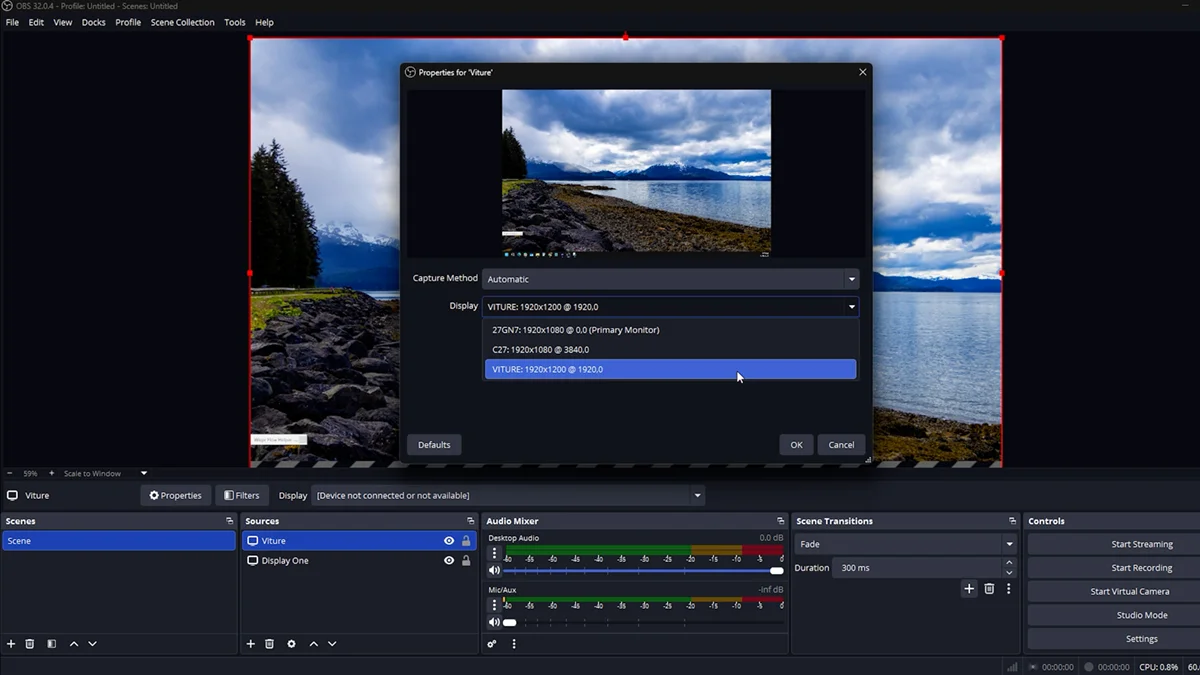
Watch the overview video or keep reading the full article below
The Desktop Challenge: Why “Plug and Play” Fails
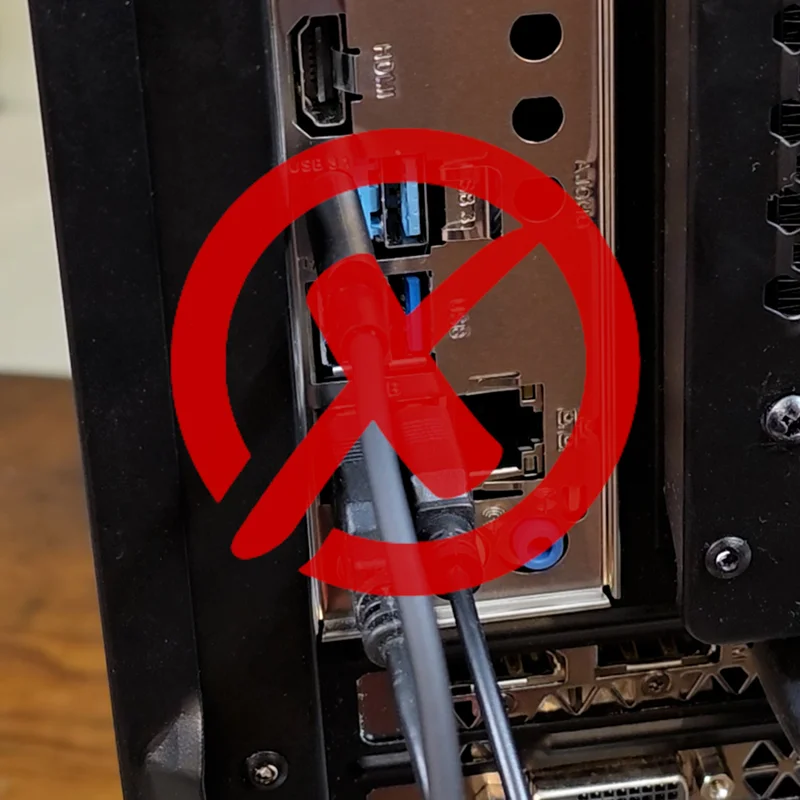
Connecting the Viture Luma Pro glasses to a desktop is, unfortunately, a bit of a science project. While these glasses are a dream for laptop users with USB-C Alt Mode, moving to a desktop introduces a major hurdle: most consumer GPUs and motherboards simply do not output a DisplayPort signal through their USB-C ports if they have any at all.
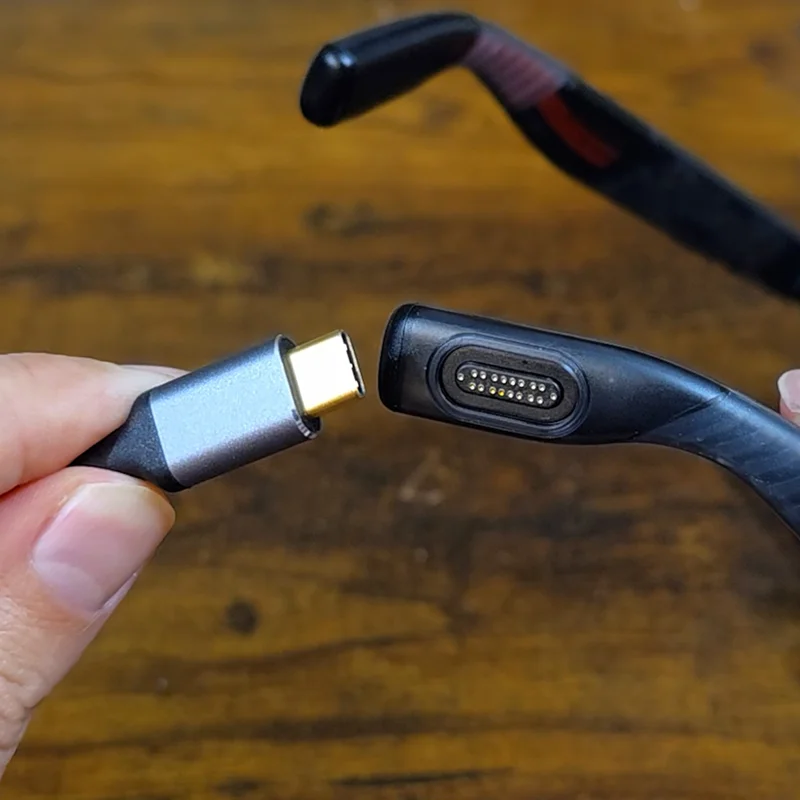
With my old Xreals, a unique but easily attainable adapter cable did the trick. However, the Viture Luma Pros are significantly more “finicky” about signal integrity and because Viture uses a proprietary magnetic power slash video cable, you can’t just swap the cable out; you have to find a way to feed a high-quality, high-bandwidth signal into that specific proprietary link.
The “Frankenstein” Rig: Hardware That Actually Works Kinda
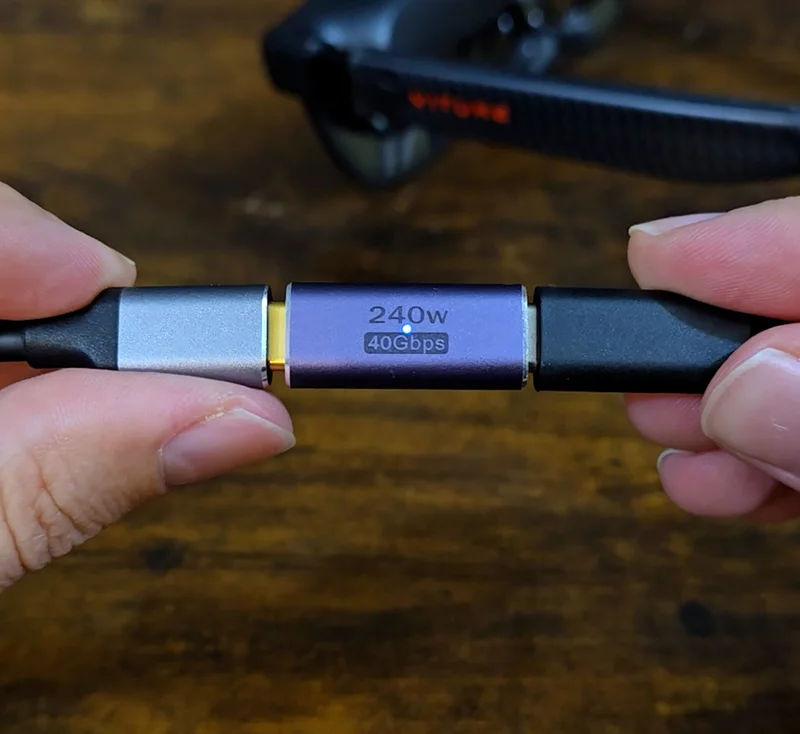
To bridge the gap between the GPU’s DisplayPort and the Viture’s USB-C requirement, I had to architect a specific chain of components. The heart of the solution is the same WJE-Sog cable I used before, which pulls the video signal from your GPU’s DisplayPort, draws power, and creates a data link from a USB 3.0 port.
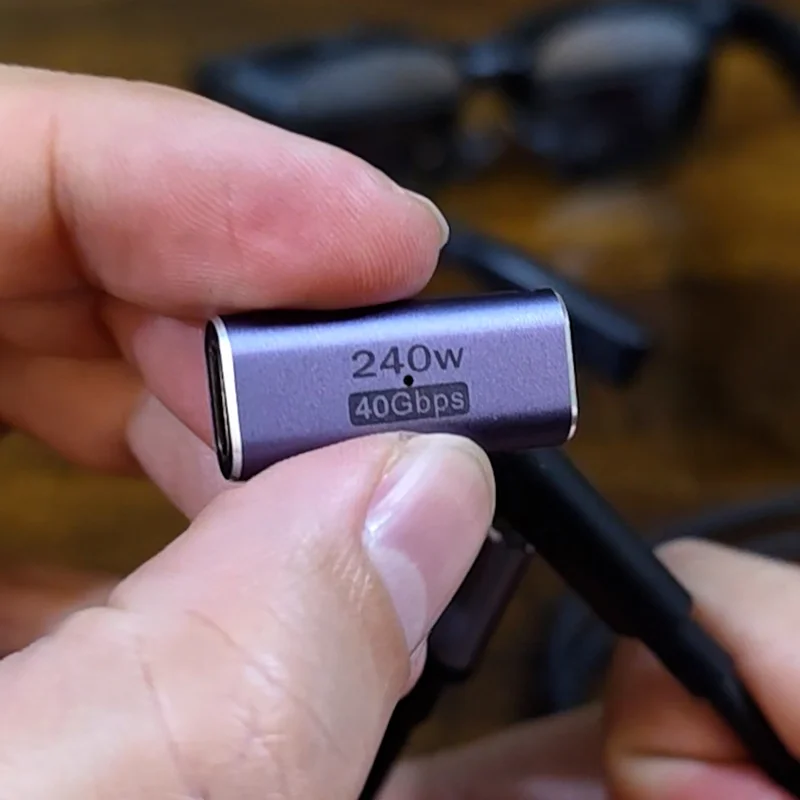
But because the WJE-Sog cable ends in a male USB-C, and the Viture cable is also male, you need a USB-C female-to-female coupler. This is the critical “middle man” where most people run into trouble. Through my testing, you need one that at least claims to have the Thunderbolt 3 or 4 – 40 gig spec to ensure it can handle the combined bandwidth of video, data, and power, There are dozens of these couplers out there. In the end, I took a stab in the dark with one that seemed to have fairly decent reviews and a lower return rate from AuviPal. Again, I use the word claims very loosely here.
These couplers are often directional, even being USB-C ports. I spent a good amount of time troubleshooting not having any kind of signal, only to realize I just needed to flip the coupler. Luckily, these have an LED indicator; if it’s not lit, just flip the cable over. You might even want to mark the “correct” side of the coupler and cable so you don’t have to guess every time you plug them in.
Now, I did find a single version of DisplayPort slash USB A to female USB-C but I already know it’s not going to work before buying it, which is very unfortunate.
The AMD Mystery & Troubleshooting Log
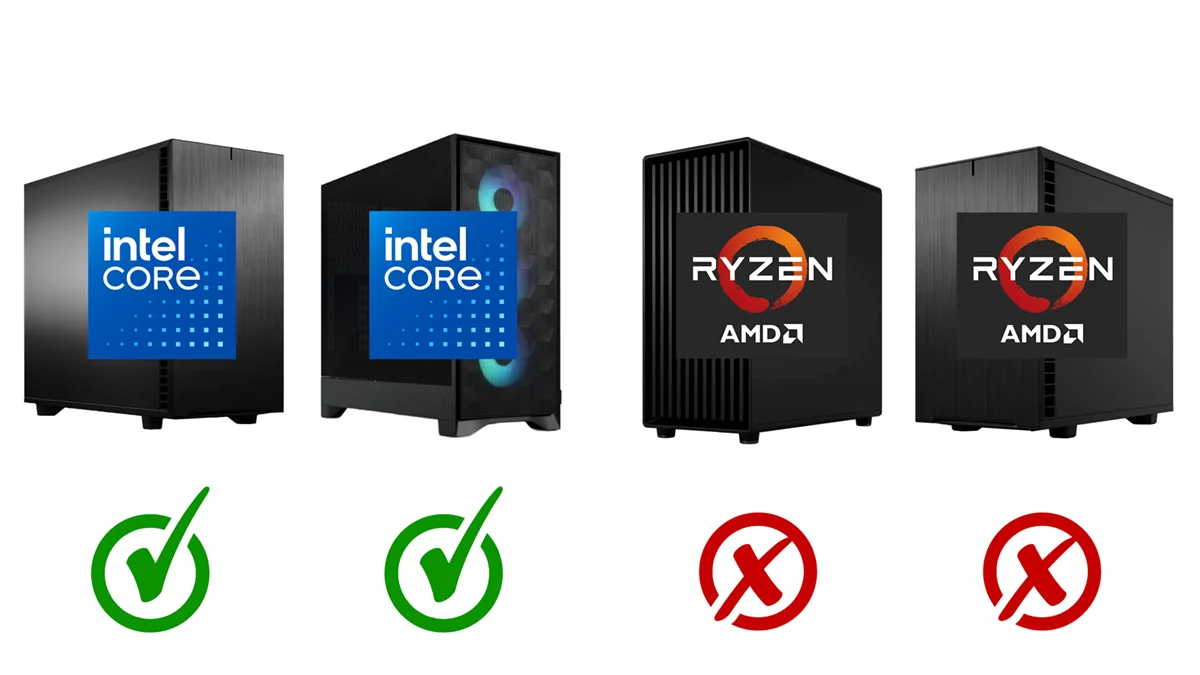
This is where the project got complicated. I tested this hardware chain across four different systems that I had access to. What I found out is that on the Intel-based builds, launching the SpaceWalker app was basically flawless: the glasses powered up, I launched SpaceWalker, and got into the virtual screens with no problem. Even my 7 year old PC with a 1070 ran swimmingly at 60 hertz.
However, on my and a friend’s AMD machines, the button to launch the virtual screen doesn’t show up, even when using the exact same RTX 3080 GPU as one of the Intel machines had. I did always get a display on the glasses but not the virtual screens generated by the SpaceWalker app.The connection was also very unstable; it would disconnect and connect seemingly at random.
That’s when I went down a deep rabbit hole of troubleshooting to try and solve this, reviewing things like.
- Power Distribution: I unplugged every other USB device to ensure the glasses were getting the maximum current available.
- Power Management: I disabled various Windows power settings to ensure the USB ports weren’t “going to sleep”right away.
- The BIOS: I even updated the BIOS because newer versions often include better support for power distribution, which was a known issue for my specific AMD chipset. While the update was successful, it still didn’t fix the connection issue.
- I tried a host of other steps to no avail.
- My Ryzen 5900X doesn’t have an iGPU so that rules out communicating to the wrong graphics interface.
Interestingly, on the AMD systems, the SpaceWalker app thinks it’s running. The menu is accessible, and I can even select to adjust the zoom settings, but of course nothing actually happens on the glasses. Best guess is that it’s a handshake issue unique to how certain AMD boards handle this specific data transfer, because again we have a video feed but not the data for head tracking to produce the virtual screens.
A Community Data Project
I want to create a database of what PC specs do fucntion so we can stop the guesswork. If you are attempting this desktop connection, please fill out the Google form I made asking for your specs and if this connection worked or not, no personal information needed. You can do that or leave a comment with the same information. By pooling our data, we can figure out where the issue begins and ends. I’ll leave a link to a Google Sheet with the results as they come in.
It’s a bit disappointing that Viture’s website and marketing don’t address these desktop-specific hurdles at all, leaving users to figure out the “science project” on their own. For a product that is so refined in its mobile experience, the lack of official documentation or a “verified hardware” list for desktops feels like a missed opportunity to support their most technical power users.
One last note on the hardware side: these couplers aren’t just for desktop “Frankenstein” setups. They are actually incredibly useful even if you’re strictly a laptop user.
If you have your laptop tucked away in a vertical stand or docked across the desk, the included Viture cable might be just a bit too short for comfort. By using a high-quality USB-C to USB-C cable and a coupler, you can essentially create a high-speed extension cord for your glasses.
The problem, as many of us know, is that finding a USB-C cable that actually meets its advertised specs is a total gamble. Luckily, the team over at Linus Tech Tips recently launched their TrueSpec cables, and I’ve been using their 50cm or 1.6foot 40 gig 240 watt version for this exact purpose. It’s been rock solid for this and every other place I’ve used them.
SpaceWalker Overview
Moveing on, once you have the physical connection sorted, the software experience is where the Viture Luma Pros really shine.
If you’re coming from the Xreal ecosystem, you probably remember the frustration with the Nebula app, it felt like it was abandoned almost immediately after launch, leaving users with a “forever-beta” experience. Viture is the polar opposite. They are pushing updates constantly; even in just the last few months, we’ve seen consistent firmware patches and stability improvements. Knowing that the developers are actually listening and iterating makes a huge difference when you’re relying on this for your daily workflow. Barring the issues with desktops.
The Nebula app still had some cool features, like the ability to tighten or widen the curve of a multi-monitor setup that I wish could be replicated in Space Walker.
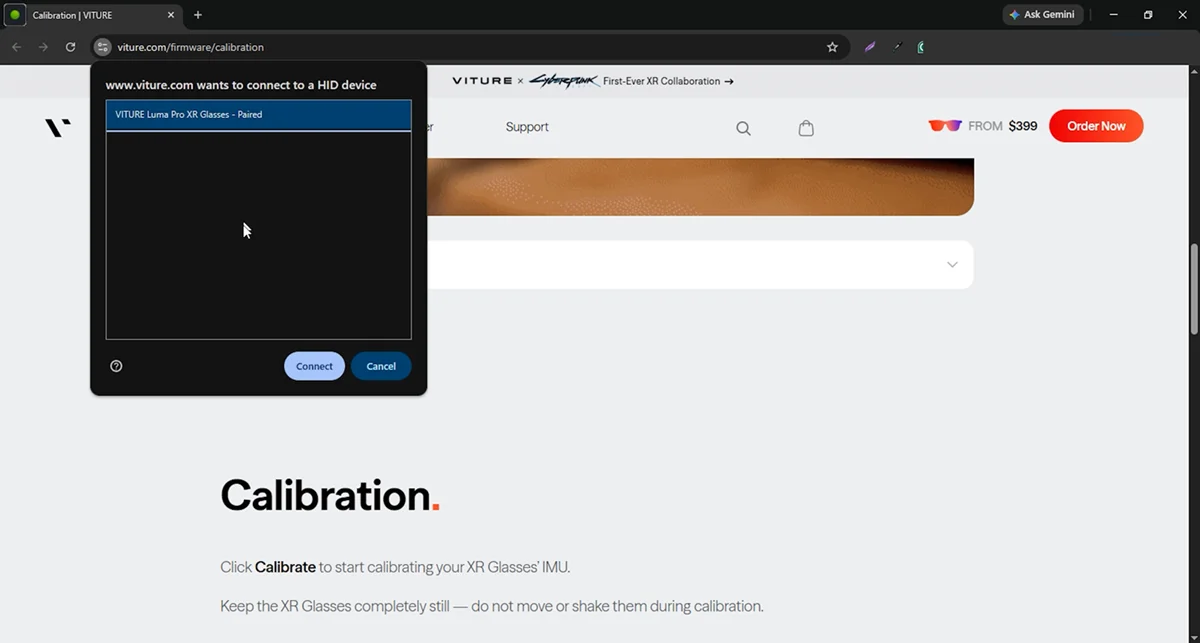
After installing SpaceWalker, you should first run the calibration, to prevent screen drift but I’ve run the virtual screens without it before too. What’s odd is that Viture sends you away from the app to a web-browser-based tool. It’s a bit of a clunky experience dealing with browser HID permissions and hardware access hurdles that should just be built into the app itself.
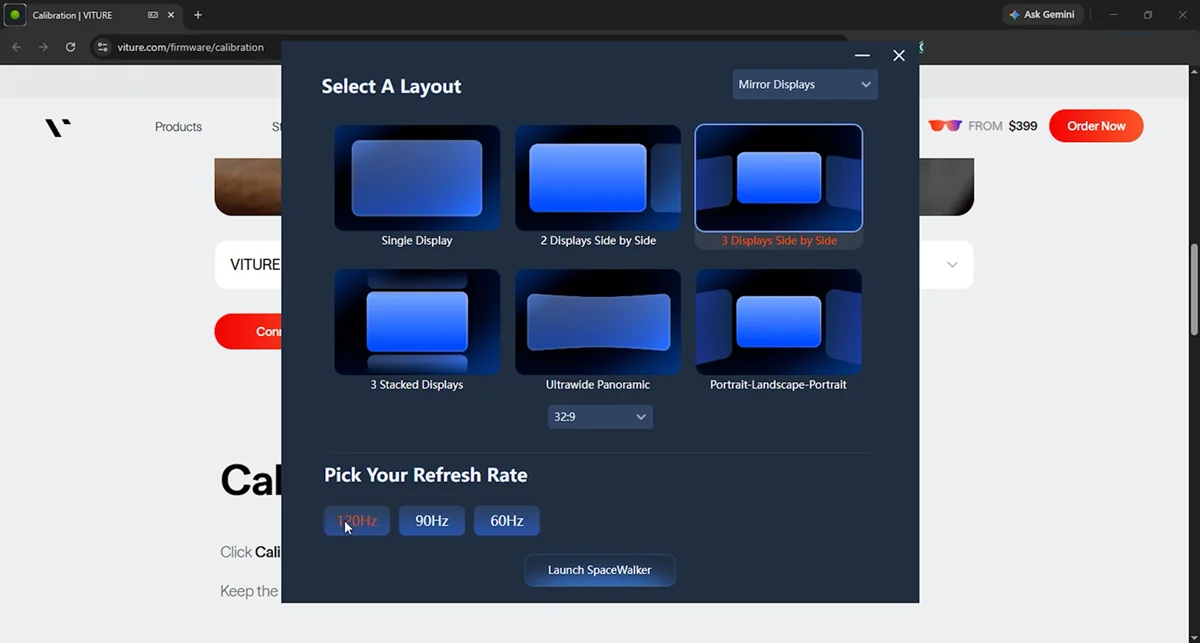
Next up, you can choose your screen layouts, go ahead and try out different options, my favorite is the traditional three-monitor side-by-side layout.
If you’re running a recent 70-series GPU or higher, you should be able to push the refresh rate to 120Hz, especially if all you’re doing is productivity work like me. Just play around with the settings until your happy. Lastly hit the launch button and enjoy your new virtual screens!
This is how I use it for my workflow when I’m creating a blog post on my website from a video I’ve already produced. I’ll have Premiere open on one screen, the website editor on the main screen, and Photoshop on the last screen. That way I don’t have to tab between each program all the time, I just look over to whatever app I need.
Here’s my pro tip, SpaceWalker has keyboard shortcuts for almost every function, from centering the display to adjusting zoom and more. I’ve mapped these directly to my Stream Deck Mark 2. If you’re at a desk all day, streamer or not, you need one of these. I actually use three! Having physical buttons to toggle your XR environment makes the whole experience feel like a seamless part of the workflow.
I’m really happy how this turned out. It’s just very unfortunate that we’re having to jump through these hoops to even see which machines can support it. Don’t hesitate to leave a comment or fill out the form; hopefully, we can get a clearer picture of what’s happening.