
How Long Does Your Memory Card Actually Record?
Every dash cam runs on a storage budget: resolution, channels, and card size all spend it. Drop your setup into the calculator for the real number, then read on for how to stretch it when the drive gets long.
Dash cam storage calculator
How long a card records, from footage we measured ourselves
The short version
Recording time is usable space divided by how fast footage piles up. Resolution and camera count set the pace, capacity sets the ceiling, and loop recording means you always keep the most recent window, not everything. Buy a high-endurance card, rated V30 or U3, within your camera’s supported maximum.
Run your real setup through the tool aboveWhat’s pulling on your storage
Storage time is just one division problem: how much space you have, divided by how fast footage piles up. Four things move that number.
Sharper means bigger
More pixels, more data, but nowhere near as much more as the pixel count implies. 4K holds four times the pixels of 1080p, and on this bench it does not write four times the data: the three 4K dash cams we have recorded with land between 1.3 and 2.9 times our measured 1080p channel. Switching one camera between its own modes shows the same thing, with the FitcamX writing 1.7 times as much at 4K as it does at 2K. Encoders spend bits on motion and detail, not on empty pixels, and on the same 4K sensor the bit budget varies two to one between makers, which is why cameras with the same sensor record so differently. Resolution is still the biggest lever you control, and a higher frame rate piles on more still, but the saving from stepping down is smaller than the spec sheet suggests.
Every camera is its own stream
A front-and-rear cam records two videos at once (like the VIOFO A229 Plus); add an interior or side camera and that’s three or four (a 4-channel setup like the Botslab G980H). Their data rates stack, so a dual-4K rig fills a card about twice as fast as front-only.
Card size scales almost straight
Double the card, roughly double the hours, right up until you hit the largest size your camera supports. Past that ceiling a bigger card may not even be recognized.
You get almost the whole label, then the camera takes a cut
Two different things get blamed for the same missing space, and only one of them is real. The card itself is honest: across the genuine cards we have written and read back byte for byte, the median delivered 98.16% of the number on the label. What your computer shows is smaller only because it counts in binary, which is why a 128GB card displays as about 119. Nothing was taken. The real deduction is your camera walling off part of the card for locked event clips, and that is a number we have not measured on any camera yet, so the calculator leaves it at zero and gives you a slider rather than inventing one.
Loop recording, explained
A dash cam isn’t building an archive. It records in short clips and, once the card is full, the newest clip overwrites the oldest. So the “hours” you calculate is really a rolling window of the most recent footage.
When the card fills, recording loops back to the start and writes over the oldest unprotected clip. Anything the camera locks, usually crash or event clips triggered by the G-sensor, is set aside and kept until that protected space runs out too.
More capacity doesn’t give you a longer memory forever. It gives you a longer rolling window.
That’s the practical takeaway: on a small card during a full day of driving, the morning can be gone by dinner. That’s fine for everyday protection, and it’s exactly the thing to plan around on a trip.
Choosing a card that survives a dash cam
A dash cam is one of the harshest jobs you can give a memory card: writing nonstop, overwriting constantly, in a hot car. Not every card is built for it.
The numbers on the package will not tell you which cards manage it, so I bench them instead. Every card on CKBench gets the same treatment: every byte written and confirmed, every byte read back and verified, a thermal camera on it, and the results published whether they flatter the card or not. That includes one card sold as 128 GB that turned out to hold 34.
If you would rather be handed an answer than a table, tell the card finder what you are recording with and it names one or two of them, sized for the hours you want to keep.
Get a high-endurance card
Standard microSD cards are made for occasional writes and wear out fast under continuous loop recording. High-endurance lines, like Samsung PRO Endurance, SanDisk High Endurance, VIOFO High Endurance, or WD Purple, are rated for the constant rewriting a dash cam demands. This is the choice that saves you a corrupted card down the road. I lab-tested the SanDisk's real write speeds and thermals in a dedicated review.
V30 or U3, minimum
The card has to keep up with a steady write, not just a quick burst. For 4K, look for a Video Speed Class of V30 (or UHS U3) at least; multi-channel 4K wants headroom above that. Too slow and you’ll see dropped frames or “card error” mid-drive.
Stay within the camera’s max
Every dash cam lists a maximum supported size, often 256GB or 512GB. Going bigger doesn’t unlock more; the camera may simply refuse to read it. Check the manual before you buy the largest card on the shelf.
Counterfeits are everywhere
Marketplaces are full of fakes that report a huge capacity but only hold a fraction. When the card “fills” past its real size, footage silently corrupts. Buy from reputable sellers, and it’s worth testing a new card’s true capacity before you trust it.
The three I keep going back to, all high-endurance or dash-cam rated:
Disclosure: The buy buttons below are affiliate links. As an Amazon Associate I earn from qualifying purchases, at no extra cost to you. Affiliate links like these and my YouTube channel are what keep the site running.


SanDisk High Endurance 256GB
Built for dash cams and home monitoring: continuous-write rated.
Buy on Amazon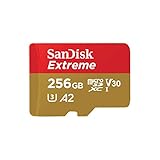
SanDisk Extreme 256GB
C10, U3, V30, A2. Fast and proven if you also shoot 4K elsewhere. The 512GB version holds V90 on the bench.
Buy on AmazonGoing the distance on a long trip
Road trips are where storage planning actually matters. If you want to keep the footage instead of looping over it, a little setup before you leave goes a long way.
- Size up the card first. Run your real setup through the calculator above and aim for a card that covers a full day of driving with margin to spare. Then you’re only offloading once a day instead of watching the morning disappear.
- Trim what you don’t need for the boring stretches. Dropping from 4K to 1440p roughly halves the data rate, and switching off the rear or interior camera for a leg frees up a whole stream. Save the high settings for the scenic parts.
- Offload at your stops. Gas, food, and overnight stops are your chance to pull the day’s clips onto a phone or laptop. Most cameras with an app let you do it over Wi-Fi without ever touching the card.
- Lock the keepers. If something happens, a great view or a close call, hit the lock or event button so that clip is protected and won’t get overwritten before you can save it.
- Mind parking mode overnight. Continuous parking mode in a hotel lot can quietly burn through the card by morning. Switch to time-lapse or motion-triggered parking so it only spends storage when something actually happens.
Settings that move the needle
If you’re tight on space, these are the settings that change how fast the card fills, roughly in order of impact.
Resolution and frame rate. The largest lever by far. Each step down, 4K to 1440p to 1080p, or 60fps to 30fps, meaningfully shrinks every file the camera writes.
Codec: H.264 vs H.265. If your camera offers H.265 (HEVC), it stores similar quality in roughly 40% less space. Just confirm your editing software plays it nicely first. The calculator does not assume a codec either way: when you pick a camera we have measured, whatever codec it was recording in is already baked into the figure, because the number came from its own files.
Active channels. Turning off a camera you don’t need for a stretch removes its entire data stream from the card.
Parking mode. Continuous parking recording uses the most. Time-lapse and motion-triggered modes record far less while still catching events. Storage is only half of that question: how long the car’s battery carries the camera before the hardwire kit cuts it is the other half, and the parking mode battery calculator works that one.
Loop segment length. Doesn’t change how much fits, but shorter clips make it easier to grab or lock the exact moment you want.
Bitrate quality, if offered. Some cameras expose a high/normal bitrate setting. Lower bitrate stretches your hours at the cost of a slightly softer image.
Quick checklist
Checklist Before you rely on it
- Buy a high-endurance card, rated V30 or U3, sized within your camera’s maximum.
- Format the card in the camera before first use, and again every so often to keep it clean.
- Lock or offload footage you want to keep before loop recording reaches it.
- On a trip, size up and dial settings down for the stretches that don’t matter.
- Re-run the tool at the top whenever you change resolution or add a channel.
Dash cam storage FAQ
Does a bigger memory card record longer?
Yes. Recording time scales almost linearly with capacity, so a 256GB card holds roughly twice what a 128GB card does. The one limit is your camera’s maximum supported size; go past it and the card may not be recognized at all.
Do I really need a high-endurance card?
For daily dash cam use, yes. Dash cams write and overwrite footage constantly, which wears out a standard card far faster than normal use. High-endurance cards are built for exactly this kind of continuous recording and are well worth the small price difference.
Why does my card fill up faster than the calculator says?
Real footage varies, and the calculator now shows you that instead of hiding it. Pick a camera we have measured and you get one number, taken from that camera’s own files. Pick “not listed” and you get a range, because resolution turns out to be a poor predictor of bitrate: our frugal 4K dash cam writes 10.74 Mbps and our hungriest writes 24.78, at the same resolution. Busy, high-motion scenes sit toward the top of that range and a quiet road sits near the bottom. Your camera’s reserve for locked clips comes off the top of whatever you get.
What’s the biggest card my dash cam supports?
It varies by model; many cap out at 256GB or 512GB. Check your camera’s manual or spec sheet. Using a card larger than the listed maximum often means it simply won’t be read, even if it works fine in other devices.
Will lowering the resolution really get me more footage?
Yes, and it’s the most effective change you can make. File size scales with resolution and frame rate, so dropping a notch, say 4K down to 1440p, can roughly halve the data rate and meaningfully extend how many hours fit on the same card.
Does loop recording delete my footage?
It overwrites the oldest unprotected clips once the card is full, keeping a rolling window of the most recent footage. Clips the camera locks, usually event or crash recordings, are protected and kept until that reserved space fills as well. Save anything you want to keep before the loop comes back around.
H.264 vs H.265: does it matter for storage?
It does. H.265 (HEVC) stores similar quality in roughly 40% less space, so it stretches your recording time considerably. Just make sure your computer and editing software can play H.265 before switching. If your camera is one we have measured, its codec is already reflected in the figure the calculator shows, because that figure came from footage it wrote.